 CADO SCRIPT
Windows Installation
Crucial step to making a clean windows installation.
Crucial step to making a clean Windows Installation, this removes ban trace files from HWID ban and also removes data on your disk drives. Feel free to backup any important files to a USB before doing this step.
Spoofer supports Windows versions up to 23H2.
We strongly recommend using Windows Pro.
IMPORTANT - Warning for Valorant & League of Legends:
League of Legends Spoofing:
- Windows 10 Required! This is due to TPM Requirements. Otherwise bans will occur after spoofing still.
- You cannot spoof on Windows 11 for League of Legends unless you have either of the following: \
- Replaced Physical TPM CHIP in PC
- Using Bypass (Disables Vanguard)
Valorant Spoofing:
- Windows 10 and 11 both require a physical TPM chip for spoofing. You will need to use to replace TPM chip in PC. Use Windows 10 if you're using a bypass or spoofing for League of Legends.
🔄 Reinstalling Windows with USB [REQUIRED]
✅ Download Windows Media
- 1
- Download the Media Creation Tool here: CLICK ME
- 2
2. Open the Media Creation Tool as an administrator.
- 3
3. Select Create installation media (USB flash drive, DVD or ISO file) for another PC.
- 4
4. Choose USB Flash Drive.
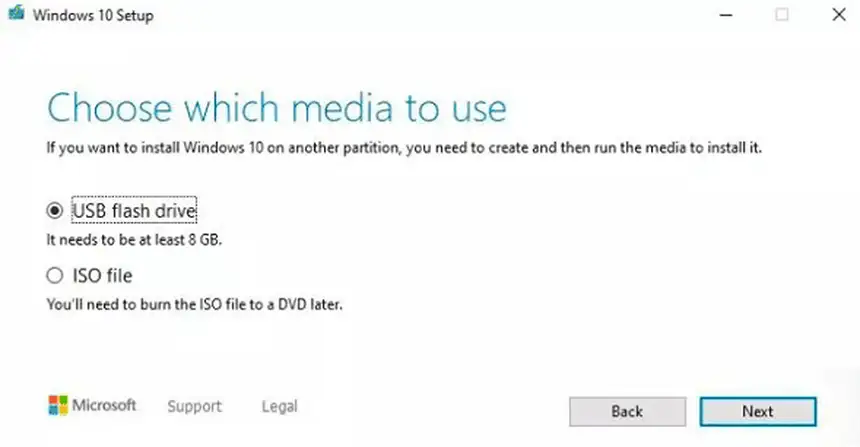
- 5
5. Click Next and begin the process of installing Windows Media onto the USB.
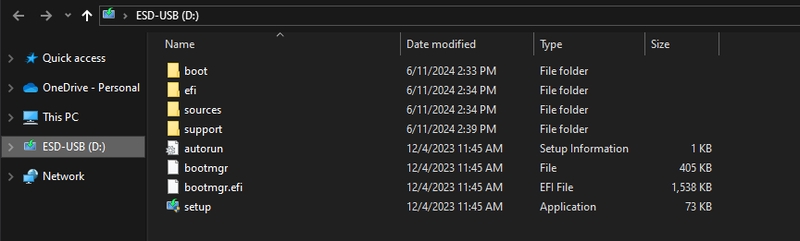
USB CONTENTS SHOULD LOOK LIKE THIS:
✅ Boot USB & Start Windows Install
Reinstalling Windows will result in losing data.
- 1
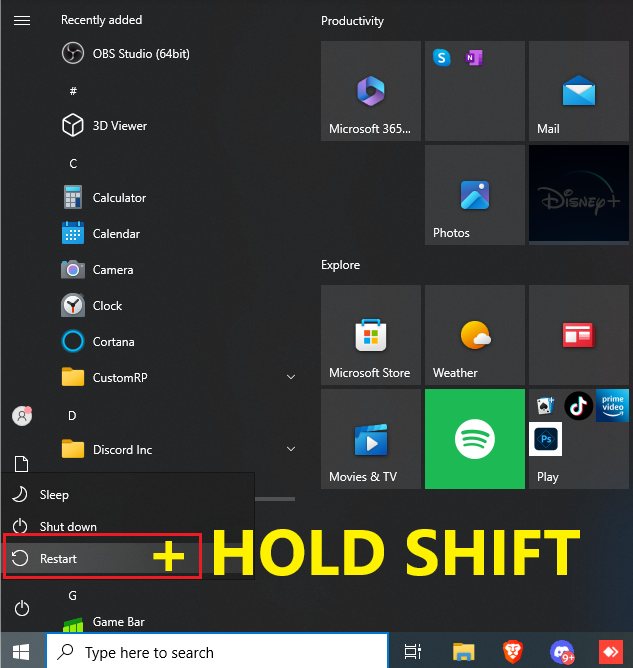
- Hold Shift and Restart PC.
- 2
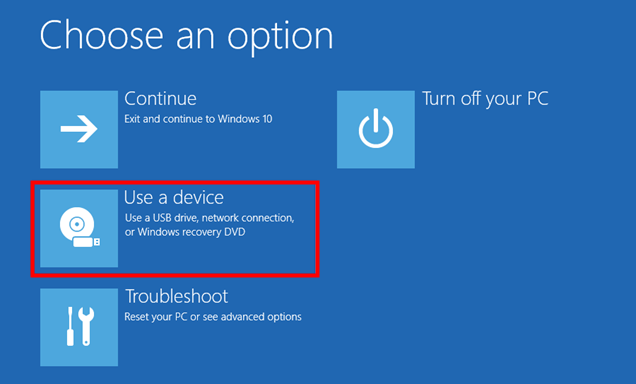
2. Select Use a device and select your USB Flash Drive.
If you are having issues getting in BIOS this way, follow the video below:
https://www.youtube.com/watch?v=mb9X9_NNxuo) - 3
3. After booting onto the USB you will be greeted with the Windows setup screen.
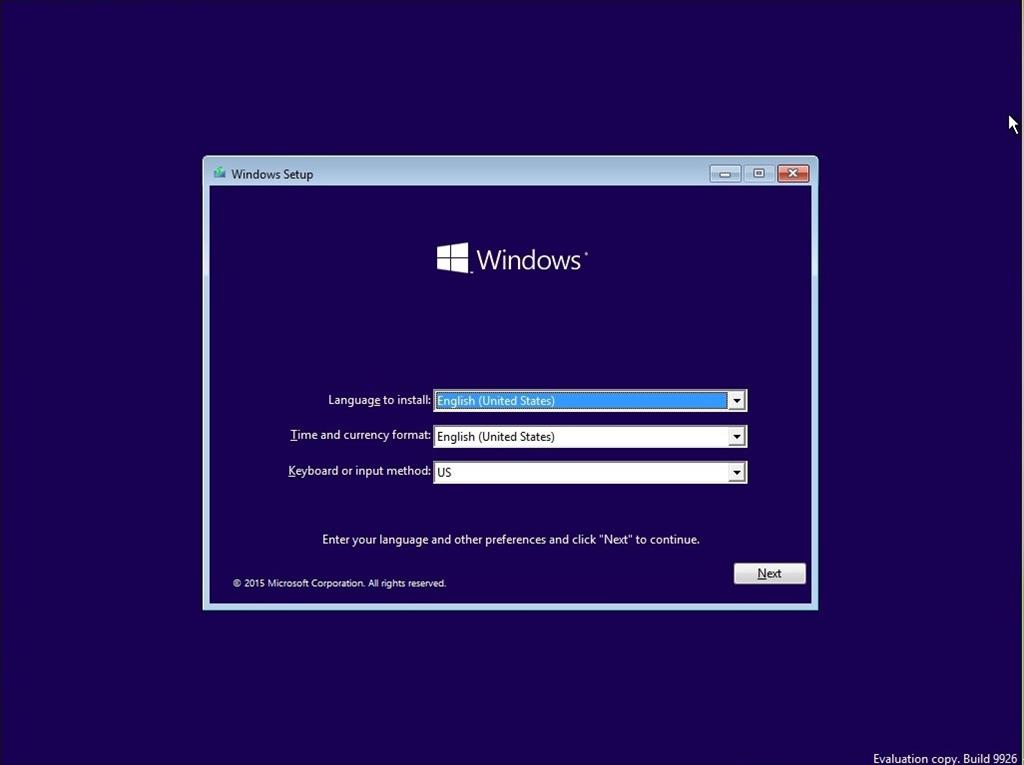
✅ Windows Setup (Installation Steps)
- 1
- Select Windows 10 Pro.
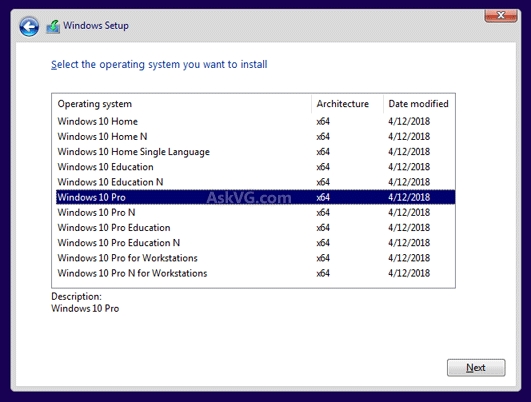
- 2
2. Select "I don't have a product key".
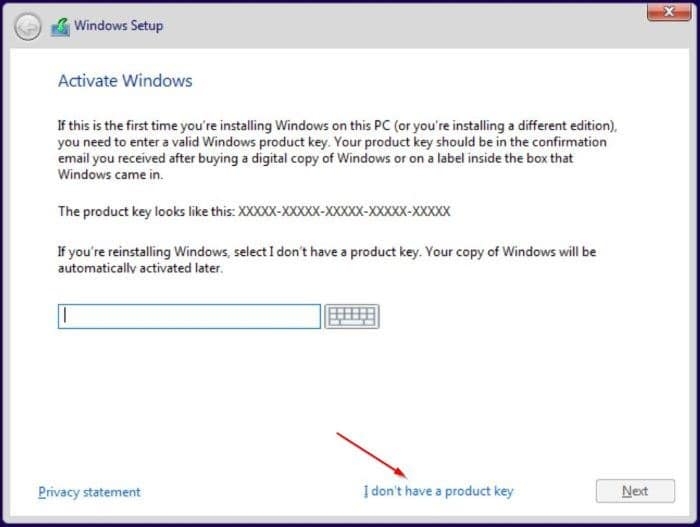
- 3
3. Select Custom: Install Windows only (advanced).
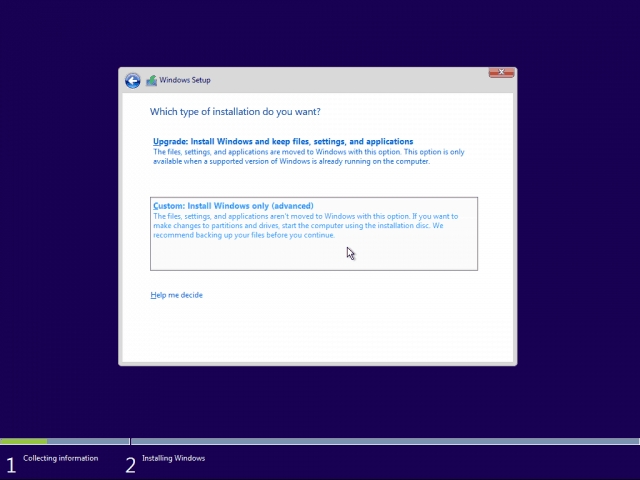
- 4
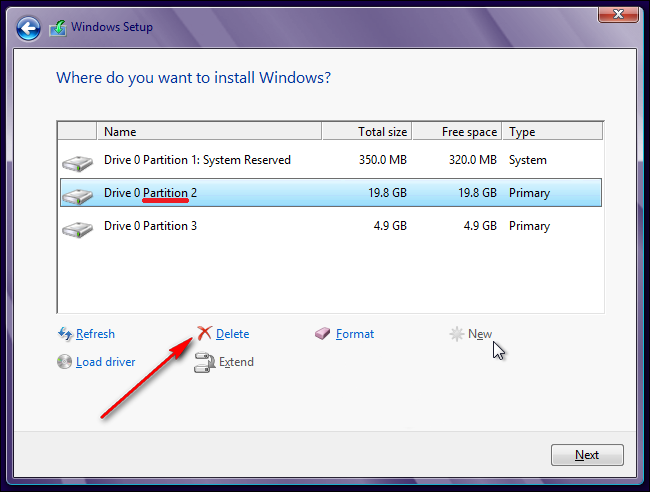
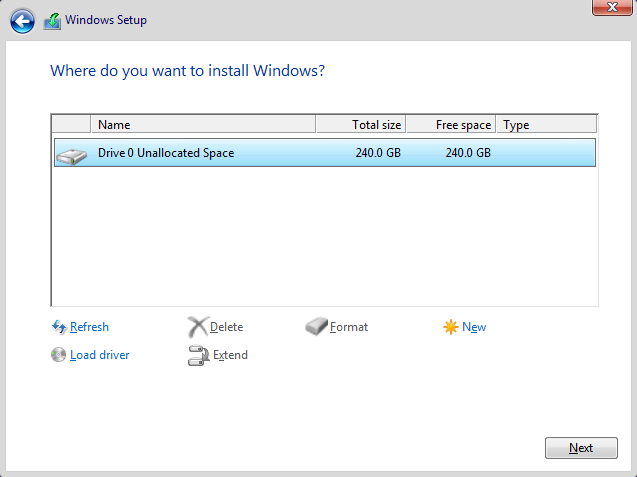
Delete every partition on the target drive — you should see Unallocated Space for each drive.
- 5
Select your main drive (where you want Windows installed) and click Next.
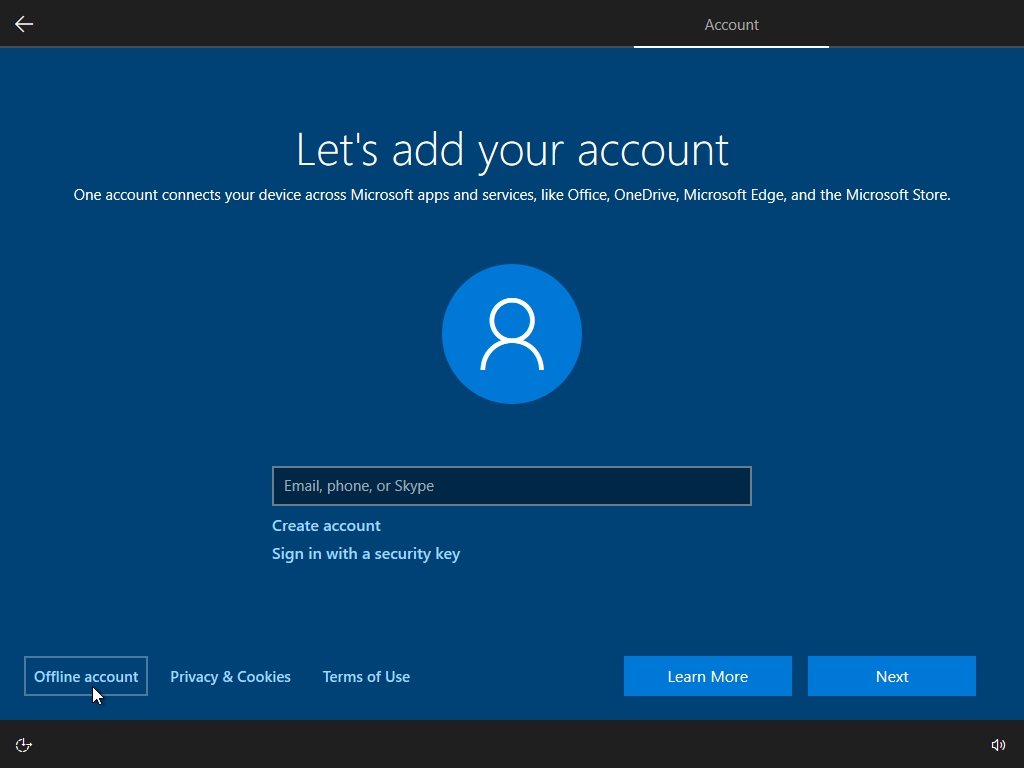
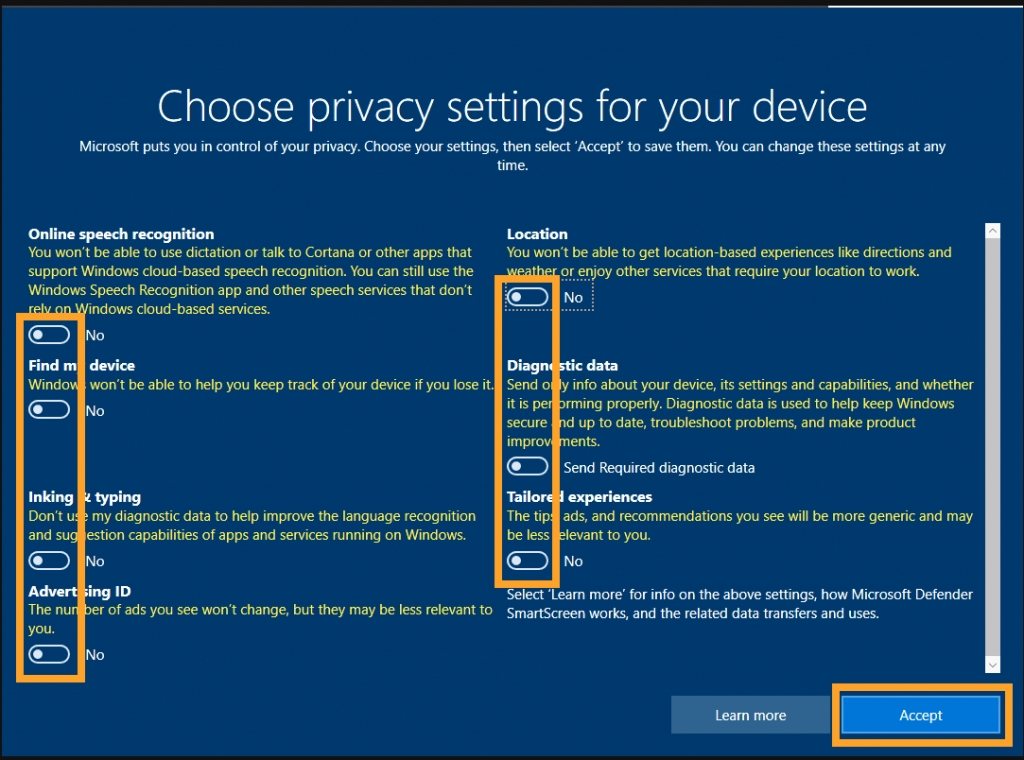
The installation process should start! REMEMBER CLICK OFFLINE ACCOUNT!
STUCK ON A STEP?
Open a ticket in our Discord and our team will help you immediately.